Cloud Updates
Designing modern cloud management for Microsoft 365 admins at scale.
Results
Total devices managed through Cloud Updates
Cloud update devices more up to date than non-managed
Admin tenants actively using Cloud Updates
Customer Voices
"[Before cloud update] our office patching was all over the place — we still have 2013 out there. We have been able to [update faster] and we are now going to heavily rely on it."
Enterprise IT Admin
"This is exactly what we need and at the right moment… [Some tasks were] a lot harder to do, taking a lot more time and energy the old way before we had cloud update!"
Enterprise IT Admin
The Challenge
Enterprise admins managing Microsoft 365 deployments faced compounding challenges that made keeping organizations secure and up to date nearly impossible at scale.
Long update cycles
Slow rollouts led to outdated software, exposing organizations to security vulnerabilities and missing critical features.
Manual deployment process
Tedious and error-prone manual work to configure, test, and push updates across thousands of devices.
No visibility into environment
Admins had no clear picture of which devices were up to date, which were falling behind, or where problems were emerging.
Lack of admin controls
Without the ability to pause, modify, or roll back updates, admins felt locked into decisions they couldn't reverse.
Strategic Direction
I led the design direction for Cloud Updates, establishing four principles that would guide every feature decision across the product.
Create confidence by preserving structure
Allow admins to keep their current organizational structure and workflows. Don't force them to start over — meet them where they are.
Simplify language and decision making
Replace technical jargon with clear, actionable language. Reduce cognitive load at every decision point.
Allow admins to reverse major decisions
Every significant action should be undoable. Admins should never feel locked into a path they can't change.
Educate admins on important benefits
Surface the value of staying current — security, features, performance — without being prescriptive about how to get there.
Beyond these principles, the work involved establishing end-to-end workflows, mapping data and information architecture, documenting user flows, and ensuring accessibility throughout the experience.
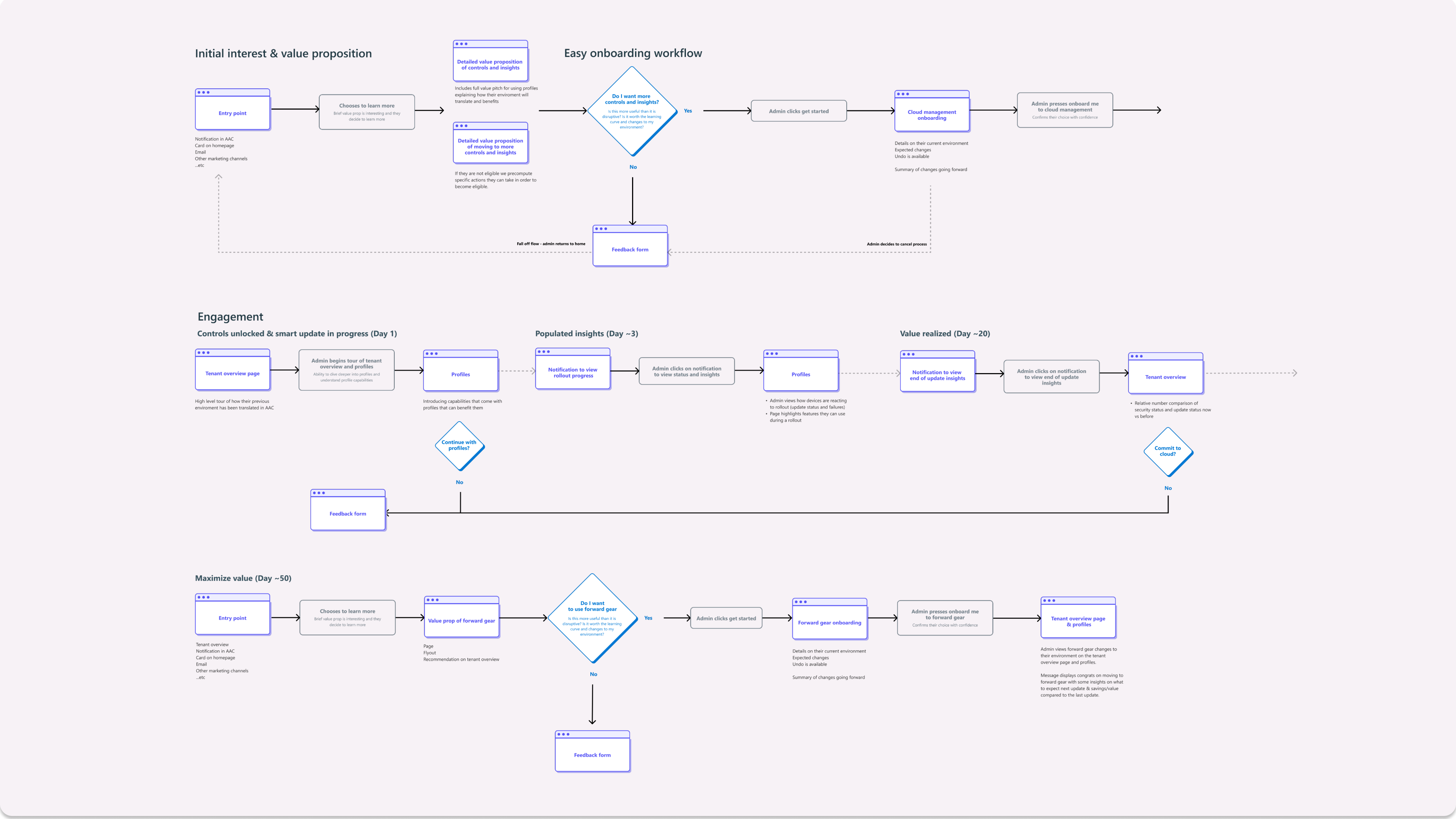
Communicate value and build trust
Entry points across email, in-product banners, and channel posts show what changes and why it matters.
Seamless transition from existing tools
Admins carry their Group Policy or Intune settings into the new control plane without breaking what already worked.
Insights and update controls onboarding
A guided tour walks admins through the new dashboards and the levers they can pull when an update needs attention.
View results of first update
Populated insights show how the first cloud-managed wave landed across the fleet — completion rates, channels, failures.
Microsoft-recommended update strategy
Once confidence is established, the recommended rollout strategy becomes the default — without giving up control.
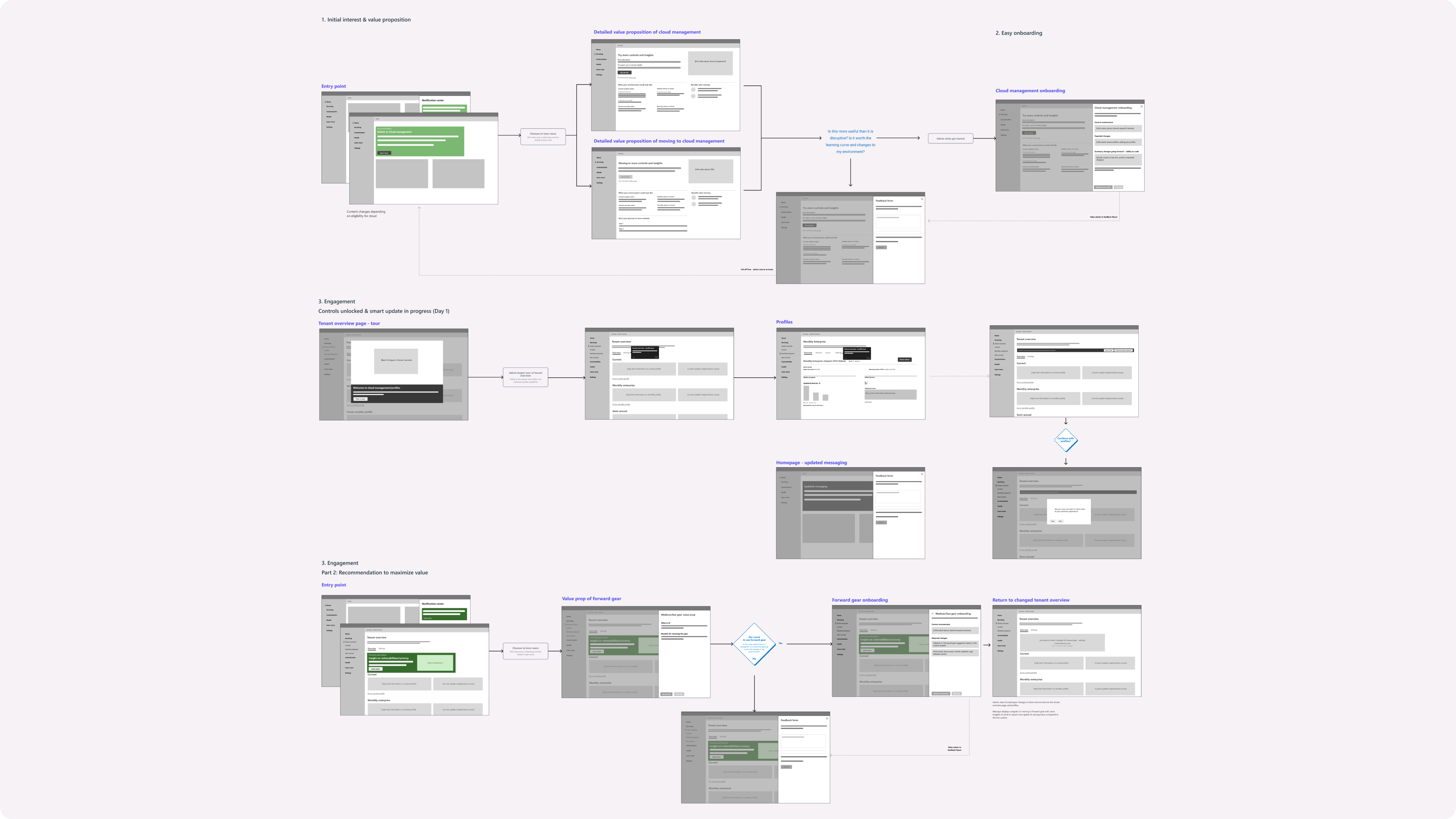
Visualizing moving to Cloud Update
Side-by-side value-prop tabs let an admin see what Cloud Update offers — before committing to anything.
Detailed changes
Once they opt in, onboarding lays out exactly what's about to change in their environment.
Onboarding flow
A guided tour of the tenant overview introduces profiles, insights, and controls in context.
Environment summary
The Day-1 dashboard reports what just changed and how the fleet is doing.
Microsoft-recommended update strategy
Once confidence is built, forward-gear becomes the default — without giving up control.
Solutions
Visibility into environment
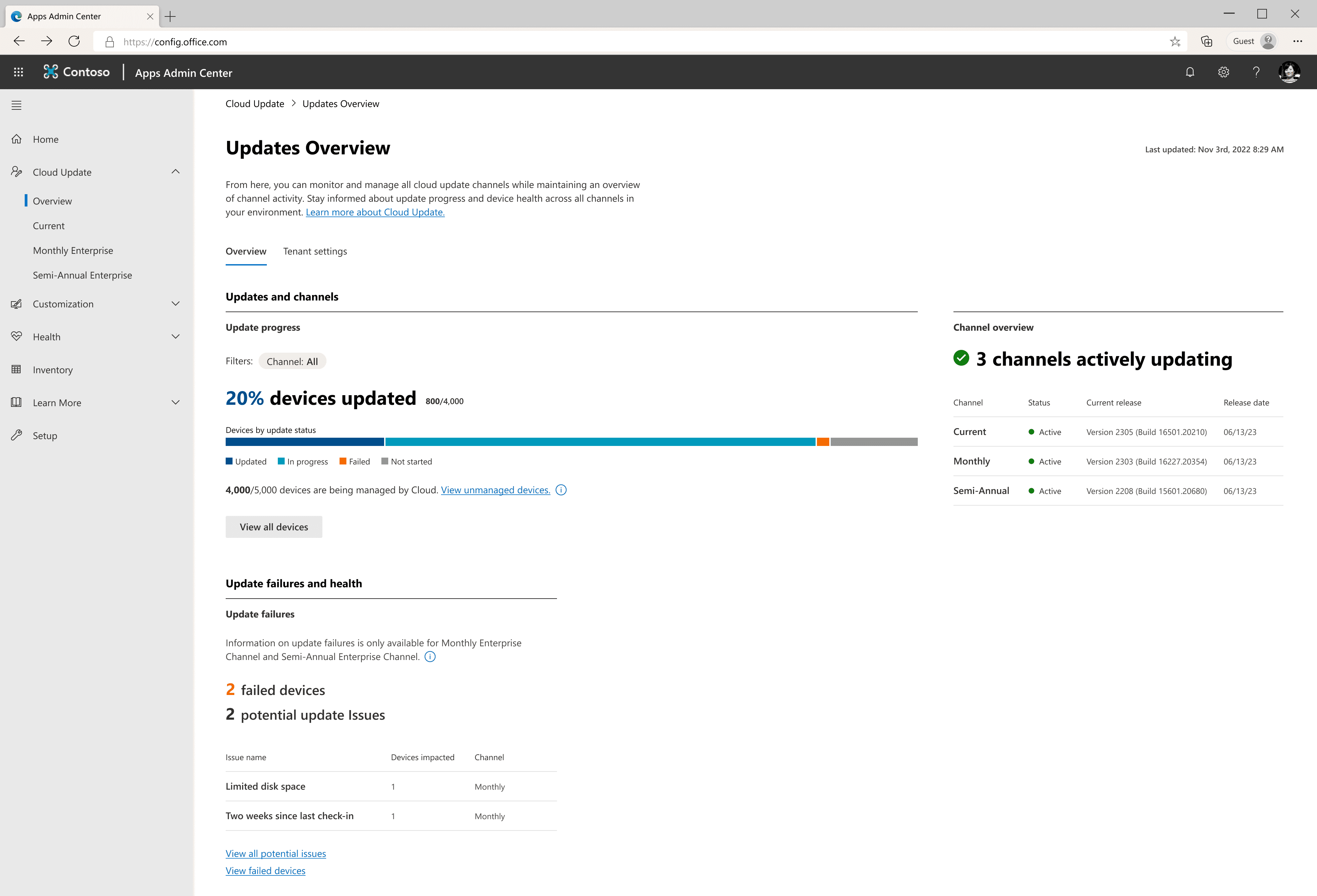
Giving admins a clear, real-time view of their device landscape. Dashboards surface update status, compliance rates, and potential issues — so admins can act on data instead of guessing.
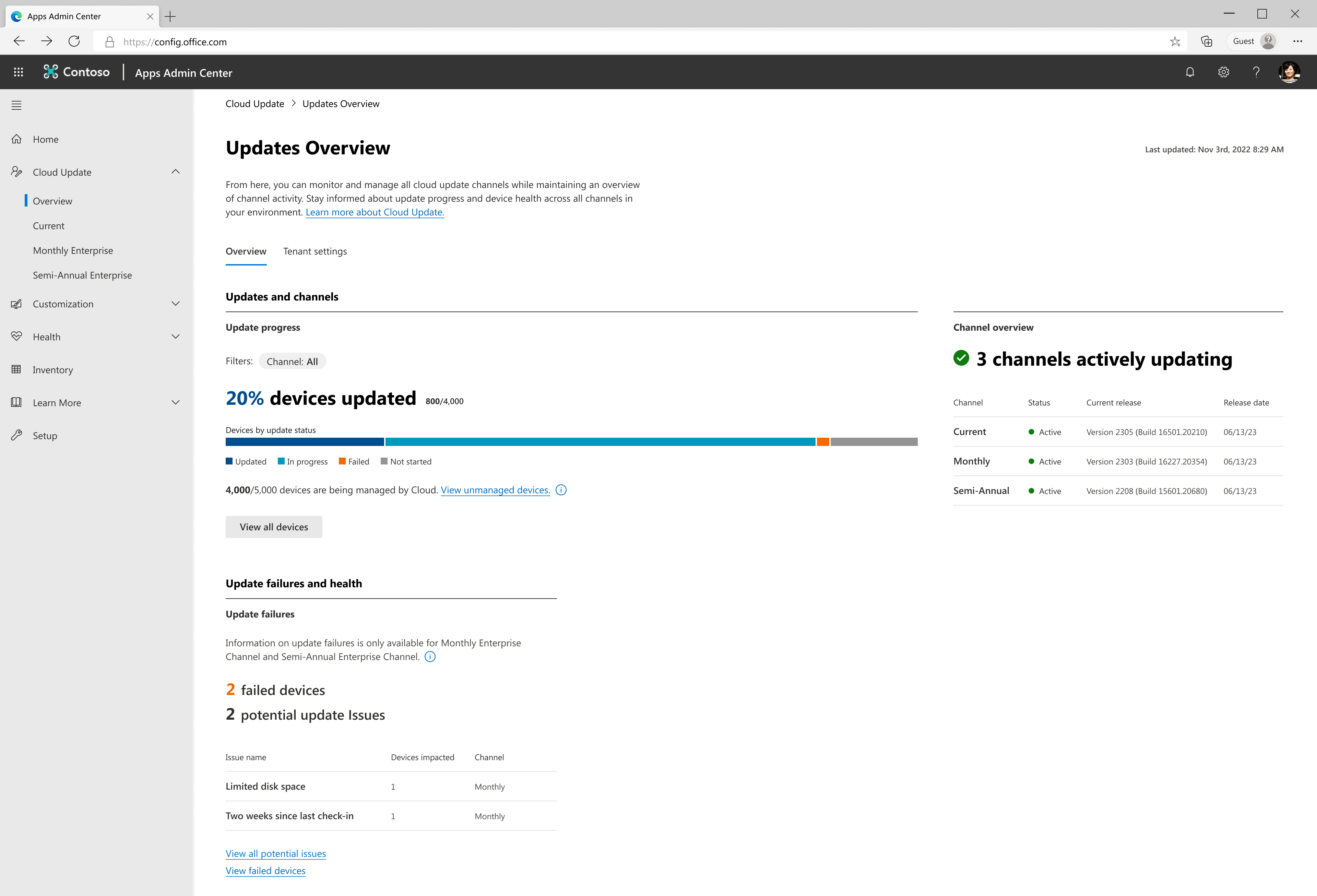
-
1
ProblemAdmins can't tell at a glance how the tenant-wide rollout is progressing.SolutionSingle status bar with a percent-updated headline and stacked breakdown by state.
-
2
ProblemNo way to see whether every channel is keeping pace.SolutionPer-channel summary with current build and release date alongside the rollout view.
-
3
ProblemAdmins need to know which devices are failing and why.SolutionFailure counts pivoted by device and by issue, with direct drill-in.
Inventory
Once admins see rollout, they need to see what they actually have — builds, channels, devices, and add-ins, all in one place.
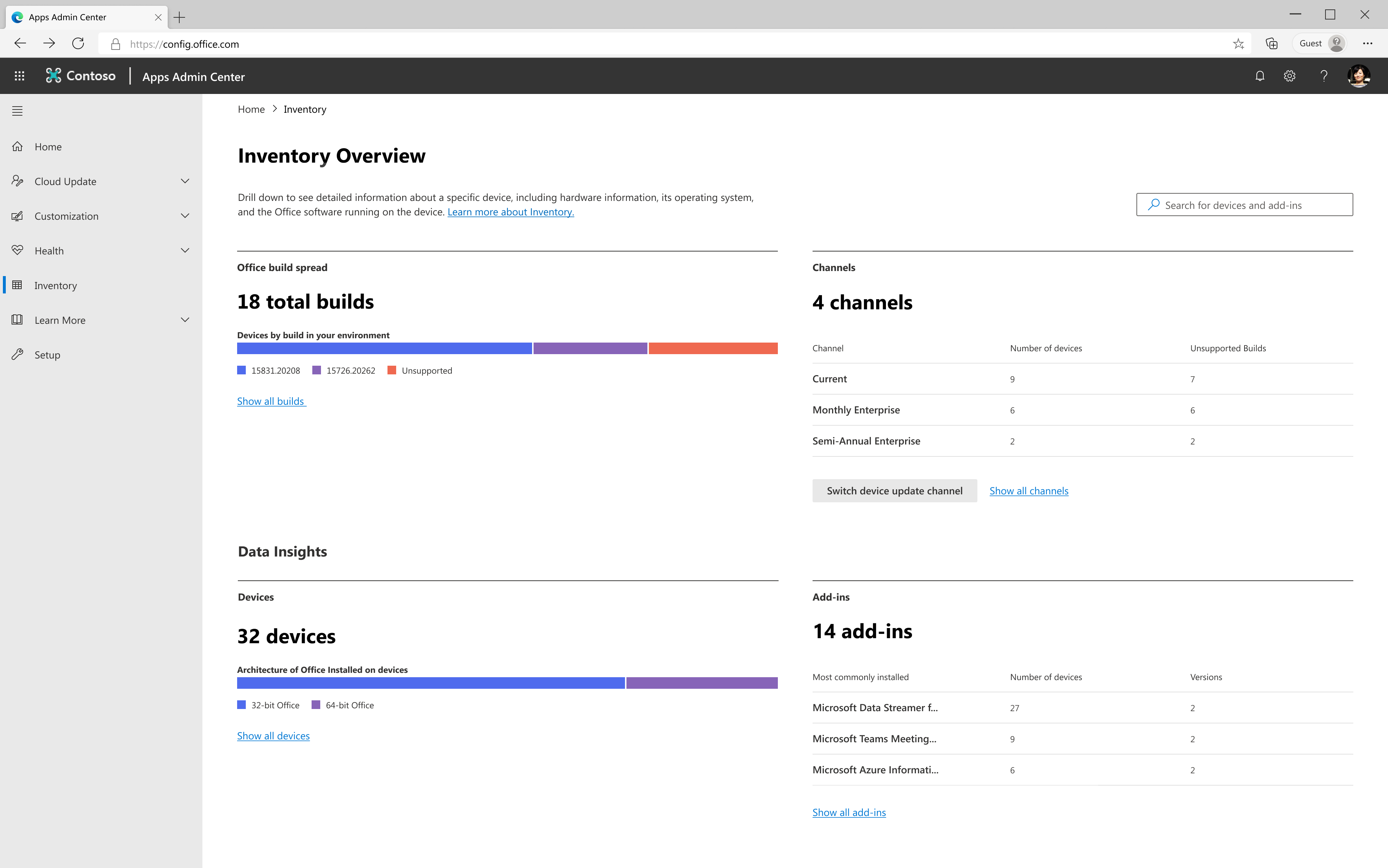
-
1
ProblemAdmins don't know how many unique Office builds they have.SolutionBuild spread graph that drills into device lists.
-
2
ProblemNo way to inspect update channel composition.SolutionChannel breakdown with build-level problem detection.
-
3
ProblemAdmins want to move their tenant to 64-bit M365.SolutionVisibility into the architecture breakdown by device.
-
4
ProblemNo visibility into add-ins — approved or user-installed.SolutionAdd-in inventory with version spread and per-device detail.
Tools for confident automation
Letting admins set up intelligent update policies, automating manual work with clarity at every step. The system handles the heavy lifting while keeping admins informed and in control.
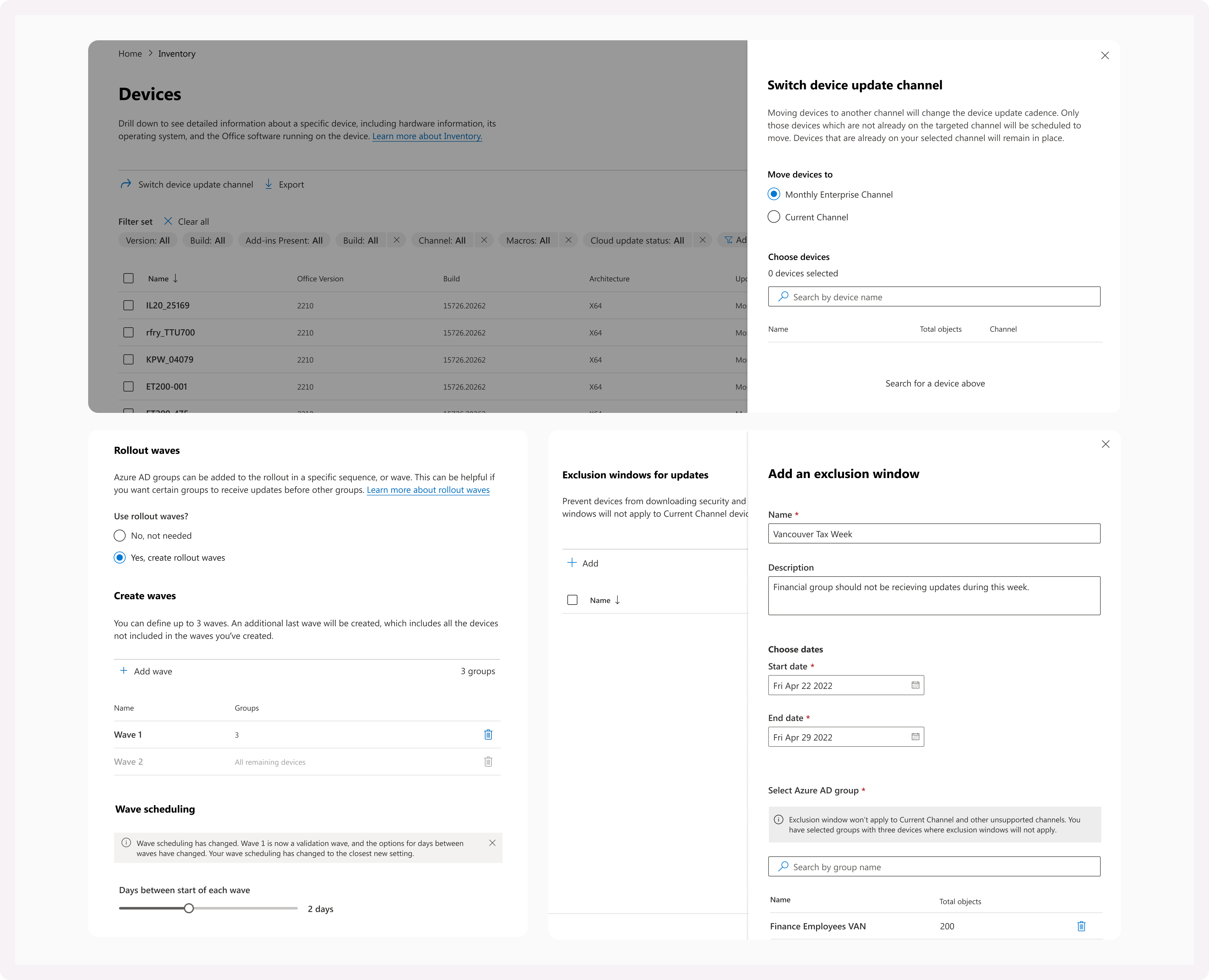
-
1
ProblemSwitching update channels requires running PowerShell scripts.SolutionBuild the workflow into Cloud Update with an inventory and flyout.
-
2
ProblemDifferent user groups have different update sensitivity.SolutionConfigure rollout waves by group, with explicit ordering.
-
3
ProblemUpdates need to pause for specific groups and time windows.SolutionSet exclusion windows by date range and group.
Admin controls and rollback
Robust controls to pause, modify, or roll back updates at any time. A safety net so admins never feel locked into a decision — building the trust needed to adopt cloud-managed updates.
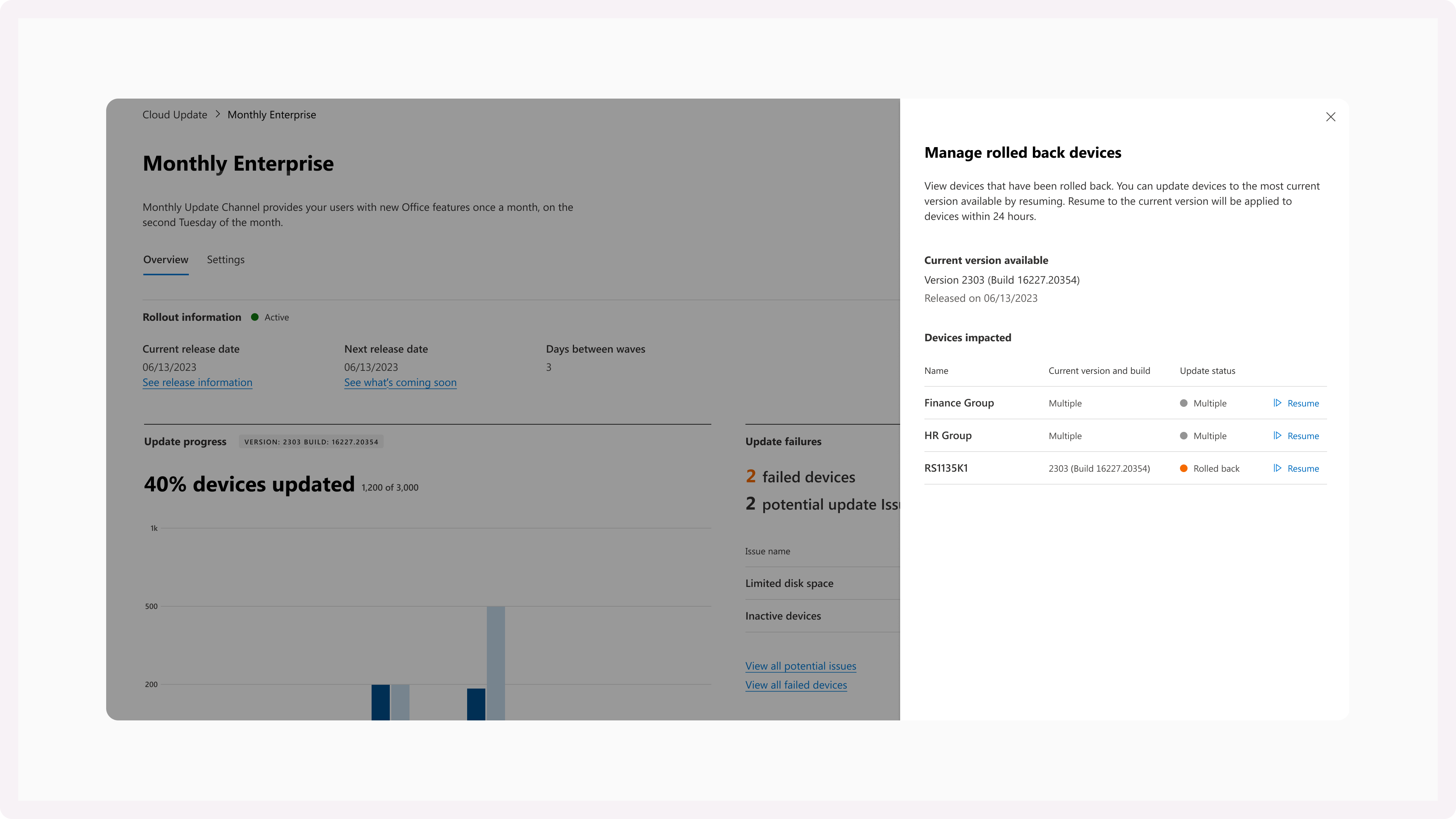
-
1
ProblemUpdate delivery, add-in compatibility, and edge-case bugs all break trust in cloud-managed updates.SolutionOne-tap rollback to the last known-good build, scoped by device or group.
Project reflections
What I wanted to show you
Enterprise admins didn't need me to make Office updates easier. They needed me to prove I understood how they actually work. Most of them have been managing patches with custom scripts and tribal knowledge for a decade. They weren't asking for a friendlier UI. They were asking whether they could trust the new system to behave the way their old one did. That was the bar.
What I learned
With this audience, the job is mostly to not be in the way. Show what's happening. Let me see what changed. Let me roll it back if I need to. Don't explain things I already know. That posture kept pointing the work toward smaller, quieter designs than where the team would usually start, and defending those was the more interesting part of the job.